


Auto Complete
axAutoComplete
Description
axAutoComplete allows an auto complete to be inserted into the 5250 screen.
Usability
| Context | Supported |
|---|---|
| Input screen fields | Yes |
| Output screen fields | Yes |
| Input subfile fields | Yes |
| Output subfile fields | Yes |
| New screen elements | Yes |
Properties
| Name | Description and Comments | JavaScript | Shipped default |
|---|---|---|---|
| containerStyle | CSS to apply to dropdown list. | No | Blank |
| dataSourceType | Indicates where the source data is obtained from. | No | fixedValues |
| deferRequestBy | The delay in seconds to defer the autocomplete request, after the user has finished typing. | No | 0 |
| fixedValues | For Fixed values data source type you must enter the values used to fill the drop down | Yes. Must return an array of item object. | No |
| lookupVariableField | SQL Query Lookup Field Name. | No | SQLVariableLookupField |
| matchingType | Determines the search pattern to use in retrieving values from the pre-populated list. Includes ‘starts-with’, ‘ends-with’ and ‘contains’ as its options. | No | startsWith |
| minChars | Minimum number of characters to use before sending an autocomplete request. | No | 2 |
| onFillDropDown | JavaScript code to execute to fill the drop down. | Yes | Blank (i.e. no script to execute – interpreted as ROW.text) |
| sqlQueryName | For Dynamic Table data source type provide the name property from the Dynamic table you are using. | No | Blank |
| sqlVariables | For Dynamic Table data source the variables used in your query. | Yes | ENV.SQL.SQLVariableLibrary =USERENV.dftSQLDataLibrary |
| tableName | For Static Table data source type provide the name property from the Static table you are using. | No | Blank |
| xmlFileLocation | Path to locate the xmlFileName when the source type is XML. | No | *DEFAULT which is equal to /ts/screens/<private folder> |
| xmlFileName | Name of XML file when the source type is XML. | No | Blank |
| onSelectedValueChanged | Event raised when selected dropdown entry changes. | Yes | FIELD.setValue(ROW.value) |
Notes, Comments and Warnings
This extension is not a visual extension and needs to be used in conjunction with a visual extension such as Default Visualization or Multitype Input Box extension.
Examples
Using different dataSourceType will determine the method used to populate the drop down. The options are XML File, Dynamic Table and Static Table.XML File:
The data to fill the table is obtained from an XML file located by default in /ts/screens/<private folder>. To specify another location change the xmlFileLocation property.
XML settings example:
- Create an XML file example called jobtitles_en.xml
<?xml version="1.0" encoding="iso-8859-1"?> <jobtitles> <title>Lawyer</title> <title>Auditor</title> <title>Maintenance Officer</title> <title>Quality Manager</title> <title>Funds Manager</title> </jobtitles>
- From the Auto Complete extension change the dataSourceType property to XML file
- From the Auto Complete extension change the onFillDropDown property to ROW.title
- From the Auto Complete extension change the tableName property to jobtitles
- From the Auto Complete extension change the xmlFileName to JobTitles_en.xml
- From the Auto Complete extension change the xmlFileLocation to /ts
Output Result:
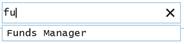
Type “fu” on the input box and AutoComplete is displayed as follows:
Dynamic Table:
Please note:
- Use this option carefully as it is the only one where the data is loaded at every screen arrival with an expected performance impact in the rendering of the screen. When you use this option you must specify the name of the query in sqlQueryName as defined in your dynamic tables file.
- This value indicates that the data should come from a dynamically created table.
- A dynamic table is (re)loaded every time a screen is displayed.
- Dynamic tables are expensive to use compared to static tables.
- Only use them when the table content needs to vary according to some dynamic criteria (eg: current company, current product, etc).
- Dynamic tables can only be loaded by SQL commands.
Dynamic settings example for aXesW3.
- Create a dynamic table definition called XHRDepartment if it does not exist already.
DefineObjectInstance { className = "DynamicTable", name = "XHRDepartment", source = "sql", selectSQLcommand = "XHRDEPCDE,XHRDEPNME from AXESDEMO.XHRDEPT where UPPER(XHRDEPNME) like UPPER ('%:SQLVariableLookupField%')", resultColumnNames = {"value","text"}, };
- From the Auto Complete extension change the sqlQueryName property to XHRDepartment.
- From the Auto Complete extension change the dataSourceType property to Dynamic Table.
- From the Auto Complete extension make sure the sqlVariables property is at the default of:
- ENV.SQL.SQLVariableLibrary = USERENV.dftSQLDataLibrary;
- From the Auto Complete extension make sure the lookupVariableField property is at the default of SQLVariableLookupField.
- From the Auto Complete extension select the onFillDropDown property. Make sure the Edit Script is equal to ROW.text.
Output Result:
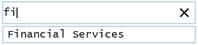
Type “fi” on the input box and AutoComplete is displayed as follows:
Static Table:
Static tables are loaded once from the server at start up. The name of the static table must be the name specified in tableName.
Static tables are very efficient and they can contain hard coded values or can be loaded by executing SQL commands.
Static Table settings example:
- Make sure USState static table exists
- From Extensions add an Extension Multitype Inputbox.
- From Extensions add an Extension Auto Complete to the Multitype Inputbox extension.
- From the Auto Complete extension change the dataSourceType property to Static Table.
- From the Auto Complete extension change the tableName property to USState.
- From the Auto Complete extension select the onFillDropDown property. Make sure the Edit Script is equal to ROW.text.
Output Result:
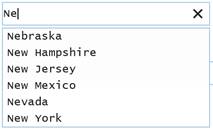
Type “Ne” on the input box and AutoComplete is displayed as follows:
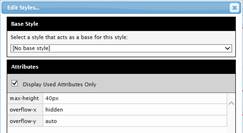
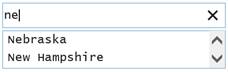
To set the height and display scrollbar in case data overflows, set theAutoComplete’s containerStyle property as follows:
Output Result:
Type “ne” on the input box and AutoComplete is displayed as follows:
Fixed Values:
Use this setting for drop downs with a small number of values when the values don't change.
Fixed Values settings example:
- From the Auto Complete extension change the dataSourceType property to Fixed Values.
- From the Auto Complete extension select the fixedValues.
- Add items by pressing the + key and hit ok when finished.
- If using script, the ENV.returnValue must contain an array of item object as follows:
ENV.returnValue = [ { caption: "item1" }, { caption: "item2" }, { caption: "item3" } ];
See Also
Dropdowns in Tutorial 6 - Advanced Screen Enhancement
Static Tables that load from static data in Tutorial 11 - Tables and XML Documents
Static Tables that load from a database file in Tutorial 11 - Tables and XML Documents
XML Documents in Tutorial 11 - Tables and XML Documents
