


Message Handler
axMessageHandler
Description
axMessageHandler allows messages to be read from the 5250 screen and displayed in a control. If there is more than one message, that is the more messages indicator is found on the message line, the Next Message button is enabled. Hitting the Next Message button will read and display the next message in the message handler.
Usability
|
Context |
Supported |
|---|---|
|
Input screen fields |
No |
|
Output screen fields |
No |
|
Input subfile fields |
No |
|
Output subfile fields |
No |
|
New screen elements |
Yes |
Properties
|
Name |
Description and Comments |
JavaScript |
Shipped default |
|---|---|---|---|
|
addTerminalMsg |
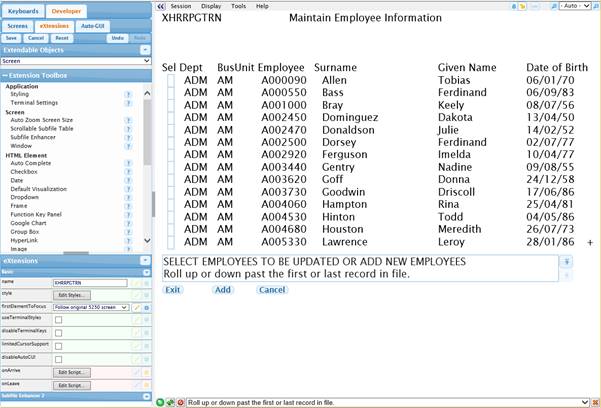
If set to true, the terminal messages, usually displayed in the status bar, are added after the line messages. TS2 only. |
Yes. Must return a Boolean. |
False |
|
enabled |
Indicates whether this element is enabled. TS2 only. |
Yes. Must return a Boolean. |
True |
|
lineNumber |
The number of the line on the 5250 screen that displays messages. |
No |
22 |
|
moreIndicator |
The list of markers that indicate that there are more messages. |
No |
"+" |
|
nextOnClick |
The JavaScript code to execute when the next message button is clicked. |
Yes |
SET5250CURSORPOS(this.getPropertyValue("lineNumber"),1); SENDKEY("PageDown"); |
|
prevOnClick |
The JavaScript code to execute when the previous message button is clicked. |
Yes |
SET5250CURSORPOS(this.getPropertyValue("lineNumber"),1); SENDKEY("PageUp"); |
|
style |
The style of the Message Handler. |
No |
None |
Examples
Insert a Message Handler into the Maintain Employee Information screen of the aXes Demo HR system.
Step 1:
Open the Projects Home Page. Select your project and then use the Work as a TS2 Developer option and sign on to a 5250 session.
Step 2:
Start the shipped aXes demo system by entering the commands:
ADDLIBLE AXESDEMO
CALL XHRRPGTRN
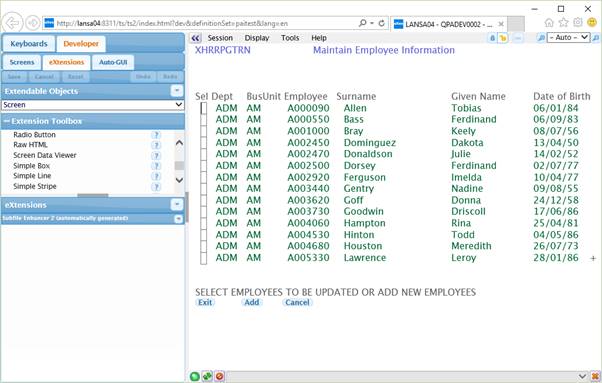
The resulting 5250 screen should look something like this:
Step 3:
Lock the screen for edit.
Step 4:
Add an axMessageHandler eXtension. (drag and drop in a empty part of the screen)
Step 5:
Select the message text on line 22 and uncheck its “Visible” property option so that it no longer appears.
Save your changes.
The modified screen should look something like this:
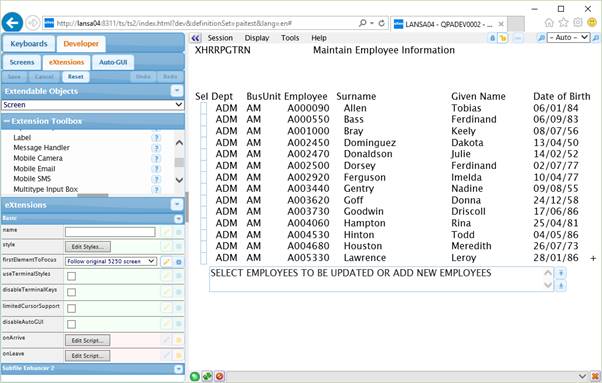
The display of the Up and Down button will change based on the theme set in Application->Styling->appStylesTheme property. When JQueryUI is selected, the Up and Down button will be displayed as a JQuery themeable button and the style will depend on the JQuery theme that is set in the Application->Styling->jqueryTheme property.
If addTerminalMsg is set to true, the modified screen will look like this.
See Also
Application Style Collection for Application themes
