


Label
axLabel
Description
axLabel allows a text label to be inserted into the 5250 screen.
Usability
|
Context |
Supported |
|---|---|
|
Input screen fields |
No |
|
Output screen fields |
No |
|
Input subfile fields |
No |
|
Output subfile fields |
No |
|
New screen elements |
Yes |
Properties
|
Name |
Description and Comments |
JavaScript |
Shipped default |
|---|---|---|---|
|
enabled |
Indicates whether this element is enabled. TS2 only. |
Yes. Must return a Boolean. |
True. |
|
onClick |
Optional JavaScript code to be executed when the user clicks on the label |
Yes. |
None. |
|
onScreenReady |
JavaScript code that is to be executed every time layout render of all extension is completed. |
Yes |
None |
|
sizeToText |
Indicates whether the label should size to its content. |
Yes |
False |
|
style |
Additional style properties that should be applied to the <div> container of the label. |
Yes. Must return a valid style object. |
None. |
|
text |
Specifies a string or JavaScript code that text to be inserted into the label. |
Yes. Must return a string. |
axLabel |
|
wrapText |
Indicates whether to wrap the text of this extension. TS2 only. |
Yes. Must return a Boolean. |
False. |
Notes, Comments and Warnings
In Application, appStylesTheme property = JQueryUI
When JQueryUI is selected from Application ->Styling->appStylesTheme property, the display will change according to the theme that was set in the Application’s jqueryTheme property. Basically, the font style will be based on the JQuery theme.
Examples
If this string is used as text ….
Hello World
should produce a display like this …
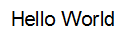
If this style is added to the preceding example …
color:red;
it should produce a result like this …
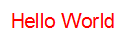
If this onClick code is added style is added to the preceding example …
window.alert("The label was clicked");
then clicking on the label should produce a result like this:
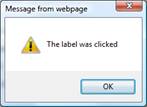
If the IBM i Main Menu screen has been identified, and the command entry field has been named "Command", then these axLabels are added to it:
|
Text |
onClick |
|
Click here for output queue QPRINT |
FIELDS("Command").setValue("WRKOUTQ QPRINT"); |
|
Click here for job queue QBATCH |
FIELDS("Command").setValue("WRKJOBQ QBATCH"); |
Then the command entry screen should look something like this …
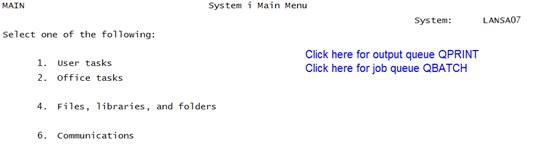
When you click on the labels the commands WRKOUTQ QPRINT, or WRKJOB QBATCH are entered, and the enter key is sent.
In effect these labels act as command short cuts by allowing commonly used commands to be executed with a single click. This adds value to the application by making it easier to use.
Specify this code in the onScreenReady property:
TRACE("**** MY ONREADY CODE IS EXECUTING. ****");
Now execute your aXes application with trace mode turned on.
You should see trace statements indicating that your code has been executed.
See Also
Moving Things Around and Changing Labels and Captions in Tutorial 6 - Advanced Screen Enhancement
Application Style Collection for Application themes
