Extension Tutorial 16 - Material Design v4.2.2
Contents
Dynamically Changing the Material Design Theme
Material Design Themes
Material Design is a design language that sets out rules and behaviour for web applications.
Developers have the option to display their applications using Material Design controls, as well as design themes to use with these applications.
A sample view could look like the example below, in various colours: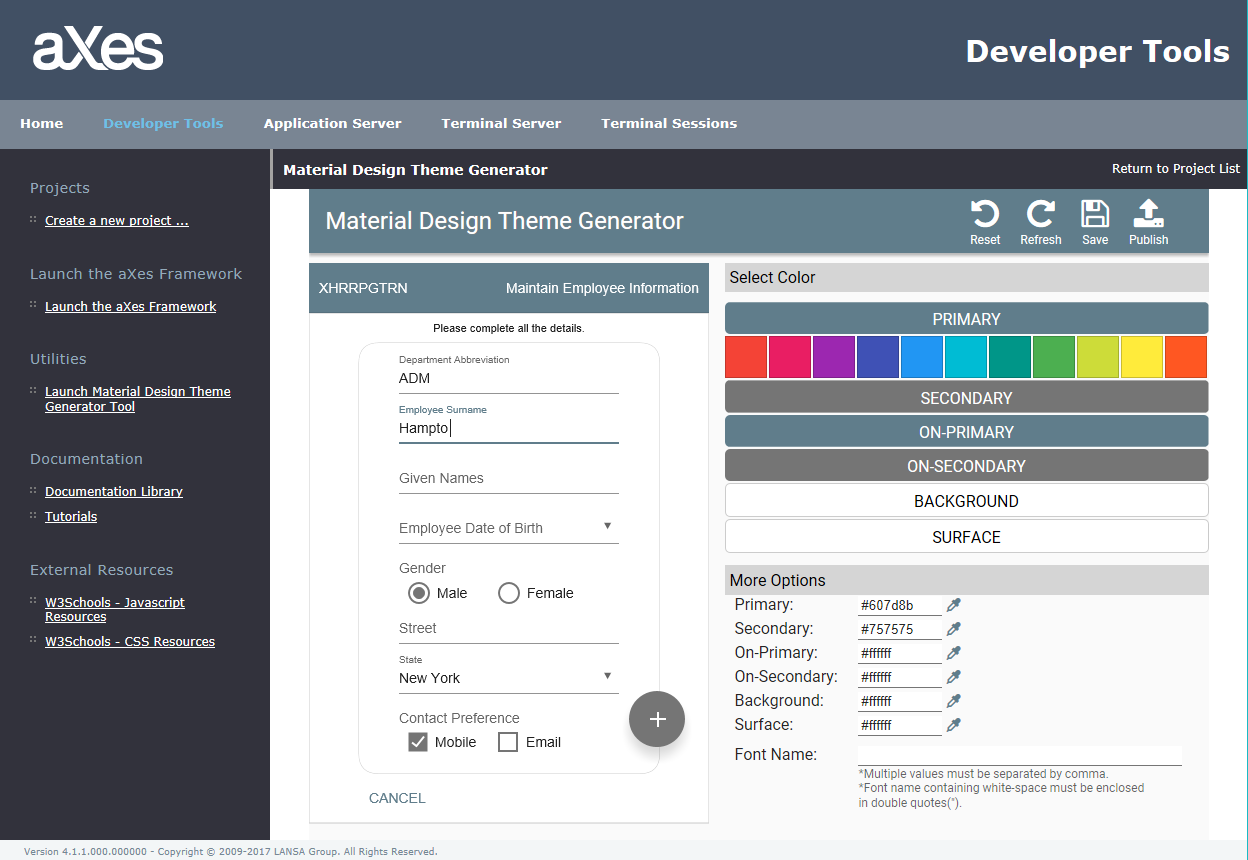
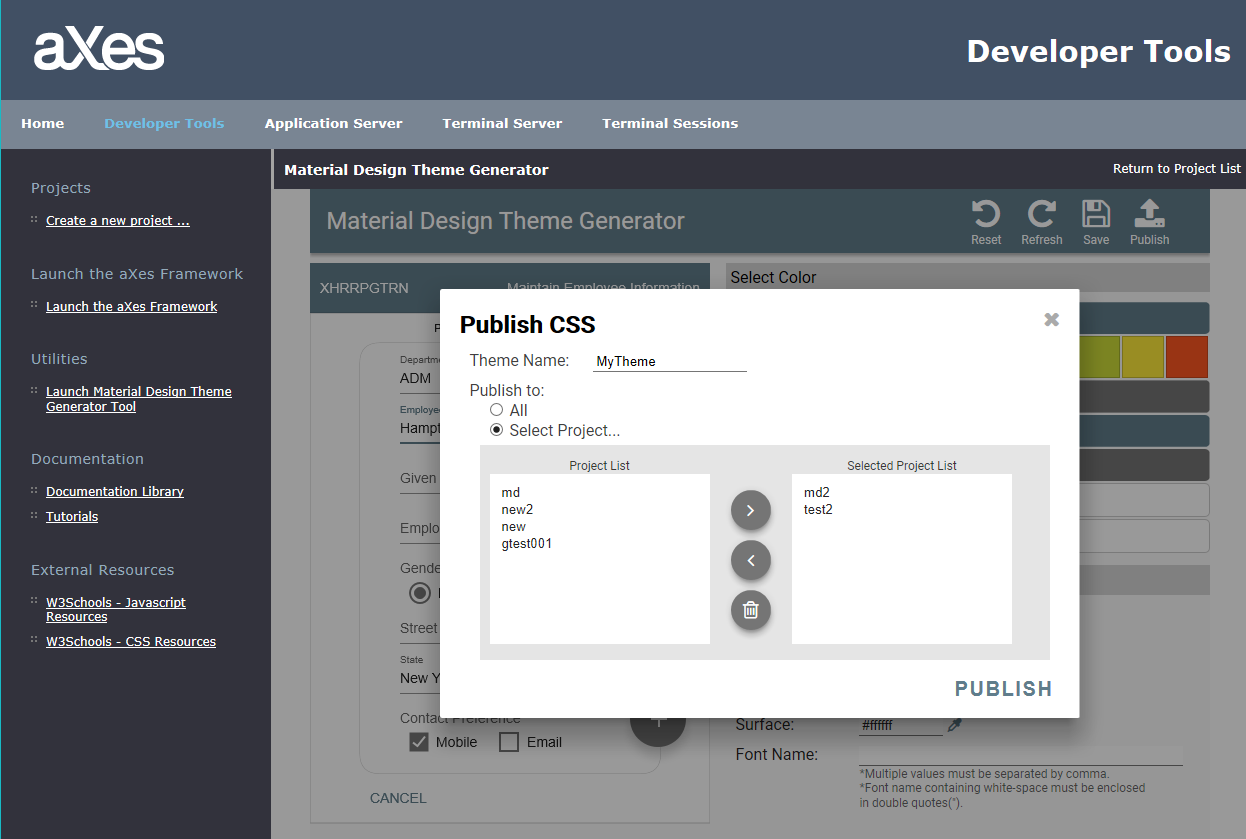
It is easy to develop a new theme with the integrated Material Design theme designer. A few clicks enable the developer to create a new Material Design theme and publish it in their preferred project.
Choreographer
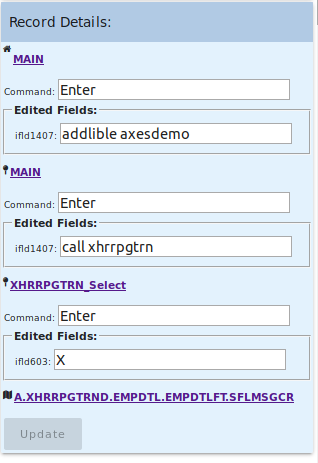
It allows the developer to record screen navigation and keystrokes, and replay those recordings.
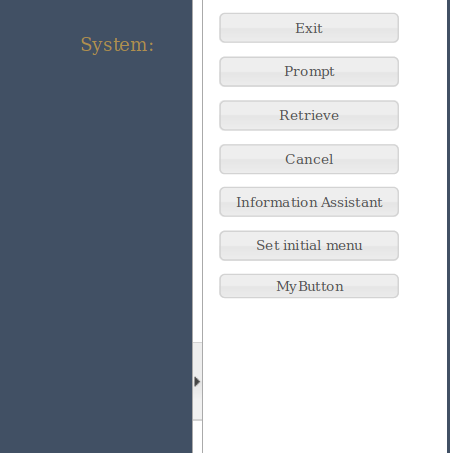
The developer can choose to make these recordings available to the user by embedding them in push buttons. For example, once added to the screen, these controls (such as buttons) allow the user to navigate automatically to the destination screen.
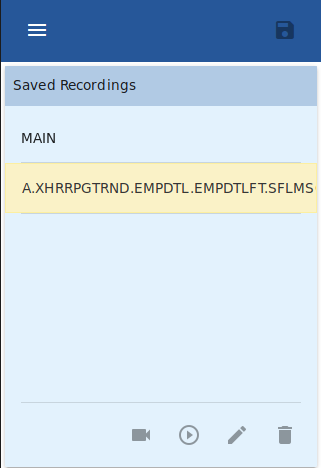
The screenshot above shows the recording list, while below are displayed the details of the recording, which is highlighted. In this example, the recording starts at “MAIN” and finishes at “XHRRPGTRN”
Material Reporting Function
The reporting functions allow developers to generate reports encompassing all customised screens and application settings. Also, on each customised screen, the report will detail all elements and extensions with their respective settings.
The purpose of such a report is for compliance and documentation purposes, where the customer requires the ability to see in a plain format all modifications applied to each screen.
aXes Services HTTP Server
Axes has been enhanced to use a new and improved HTTP web server. The Axes web server is the server component of aXes, which transforms the IBM i screens into data that the client can understand.
This new server component is a complete rewrite and features many security and performance enhancements.
When installing aXes, the new HTTP server will be installed side by side with the existing AXESW3. Developers can decide to use either server; however, it is strongly recommended to use the aXes Services HTTP server by default. The aXes Service HTTP server only supports TS2 (not aXes TS).
Browser Support
Axes Developer Tools have been upgraded to include support for the following browsers:
- Chrome (latest version)
- Firefox (latest version)
- Internet Explorer 11 (latest version)
Please refer to the www.aXeslive.com website for a complete list of supported platforms.
IBM i OS Version Support
The minimum IBM i operating system version supported is V6R1M0. On V6R1M0, the aXes Services HTTP server will not be available due to restrictions on the install program; therefore, users cannot take advantage of the new aXes Services HTTP Server or the Connector functions on IBM i OS V6R1M0. If you wish to install those features, it must be on 7.1 and above.
Installer Options
aXes 4.2.0 no longer supports an upgrade option. You cannot upgrade a previous version of aXes to v4.2.0. If you wish to upgrade, you are directed to use the Side-By-Side option and copy your projects and settings from the previous version to the new instance. For more information, please refer to this forum post:
aXes 4.2.0 - How to migrate projectsDynamically Changing the Material Design Theme
You can dynamically change the Material Design theme programmatically by using the SETAXESMDTHEME() and GETAXESMDTHEME() keywords in the JS app.
SETAXESMDTHEME() allows users to set the Material Design theme of their application programmatically in JavaScript.
Usage:
SETAXESMDTHEME(
ex:
SETAXESMDTHEME('blue');
GETAXESMDTHEME() allows the user to programmatically retrieve the name of the theme in their JS application.
ex:
var MDTheme = GETAXESMDTHEME();
console.log(MDTheme);
New eXtensions
Signature Pad
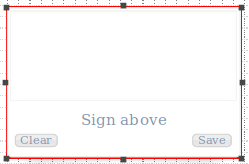
This extension enables the addition of a signature panel on the screen, allowing the user to store digital signatures on the IBM i server or download them as a PNG image file.
Button Panel
The button panel allows the developer to add a panel that can hold function keys and user-defined buttons on the screen.