


Using Example 1
The file externalhostexample1.htm is designed to generically represent an external host and to demonstrate the basics of aXes 5250 session management by an external host.
Summary of Example 1
By working through externalhostexample1.htm you should be able to see how to:
- Open and close sessions
- Set and get the value of fields on 5250 screens
- Send keystrokes the server via the 5250 screen
- Track what 5250 screen is currently on display.
- Hide and Show a displayed 5250 screen.
Setting Example 1 Up
First, put a short cut on your desk top that makes it easy to display example 1. eg: http://<axes>/ts/screens/<your project>/externalhostexample1.htm where <axes> is the IP address and port of your aXes server <your project> is the name of your project folder.
Now edit externalhostexample1.htm with NOTEPAD.
Modify it to work with your project. Right at the start you will find these lines:
/* Some basic details you may need to change */ var protocol = "http"; var host = document.location.host; var projectfolder = "externalhosting";
Typically you only need to change the project folder variable to name your project folder.
Save your changes.
Running Example 1
Use your desktop shortcut to open externalhostexample1.htm.
The resulting display should look like this:
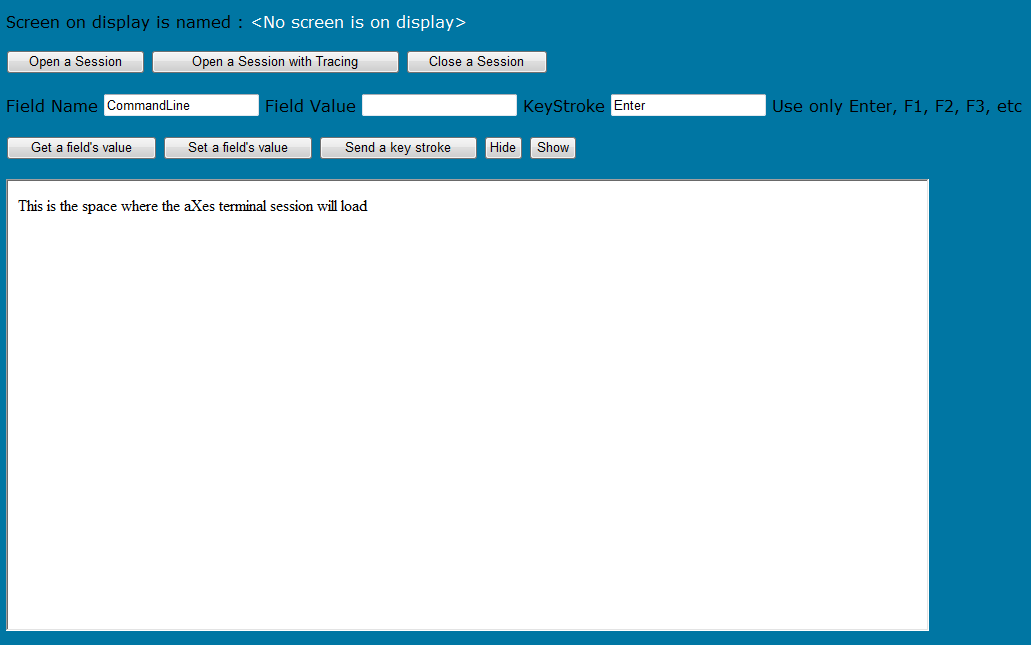
The blue area generically represents an external host. The white square is where is where an aXes 5250 session will go. There are various buttons in this external host that will manage the hosted aXes session.
Opening Sessions
Click the Open a Session button. An Axes 5250 session should appear in the white area. This code JavaScript code in externalhostexample1.htm is executed:
function Open(trace) { if (CheckSession("closed","A session is already open")) return; var frame = document.getElementById("aXesIFrame"); my5250Session = new AXESHOST.HOSTSESSION(frame); my5250Session.onFormArrive = onFormArrive; /* Hook up arrival events */ my5250Session.open(protocol,host,projectfolder,trace,true); }
This code:
- checks for a session already being open.
- gets a reference to <iframe> container that will hold the aXes session.
- asks the AXESHOST object to create a new HOSTSESSION object - putting the reference to it into the variable named my5250Session.
- Hooks up to listen for all 5250 forms arrivals.
- Opens the 5250 session.
This is fairly standard JavaScript. A HOSTSESSION is a JavaScript object that publishes properties and contains standard functions.
Setting Field Values and Sending Keys
The most fundamental 5250 session management is setting and getting the value of fields on the 5250 screen. Try this:
- Click Open a Session to start a new session. The sign on screen should appear.
- Using the external host, change the Field Name to loginUser (in exact case) and Field Value to your user profile. Then click the button called Set a Field's Value. You should see the user field on the 5250 screen change.
- Repeat this for the password – set the Field Name to loginPwd (in exact case) and Field Value to your 5250 password. Then click Set a Field's Value.
- Now set KeyStroke to Enter and click the Send a Keystroke button.
Your 5250 session should then sign on. This sequence may seem relatively trivial, but it is at the core of most external 5250 screen management.
Now try displaying the System I Main Menu. The command entry field are on the System I Main was previously named CommandLine, so try these sequences:
- Field Name = CommandLine, Field Value=DSPJOB, click Set Field's Value. Keystroke=Enter, click Send a Keystroke. The 5250 screen should change to the DSPJOB command.
- Field Name = CommandLine, Field Value=CPYF, click Set Field's Value. Keystroke=F4, click Send a Keystroke. The 5250 screen should change to a prompted CPYF command.
If you look at JavaScript in externalhostexample1.htm you will see what is happening when you click the Set Field's Value button:
function SetField() { if (CheckSession("open","No session is open")) return; var fldref = my5250Session.FIELDS(FieldName.value); if (fldref == null) { window.alert("Field named " + FieldName.value + " can not be found on the current 5250 screen."); return; } fldref.setValue(FieldValue.value);
}
The Get Field's Value button:
function GetField() { if (CheckSession("open","No session is open")) return; var fldref = my5250Session.FIELDS(FieldName.value); if (fldref == null) { window.alert("Field named " + FieldName.value + " can not be found on the current 5250 screen."); return; } FieldValue.value = fldref.getValue();
}
The Send a KeyStroke Button:
function SendKey() { if (CheckSession("open","No session is open")) return; var key = Keystroke.value; key = key.toUpperCase(); my5250Session.SENDKEY(key); }
Tracking Screen Arrivals (and Departures)
At the top of the externalhostexample1.htm form you should see an area like this:

This displays the aXes name of the screen currently on display. This text appears because of two things. First, this line in the Open function that specifies up a function to be called every time as screen arrives:
function Open(trace) { if (CheckSession("closed","A session is already open")) return; var frame = document.getElementById("aXesIFrame"); my5250Session = new AXESHOST.HOSTSESSION(frame); my5250Session.onFormArrive = onFormArrive; /* Hook up arrival events */ my5250Session.open(protocol,host,projectfolder,trace,true); }
And the function itself - which is changes the text on the top of the form:
function onFormArrive() { var screenname = my5250Session.currentForm.symbolicName; if (screenname == "") ScreenName.innerText = ""; else ScreenName.innerText = screenname; }
There is also an onFormDepart capability that notifies you that a form is about to depart. You can find out what function key is being used for this and stop the operation if you want to.
Hide and Show
These buttons can be used to hide and show the aXes 5250 screen. They have nothing to do with aXes really, but by using them you can demonstrate how screen activities can happen even when the 5250 screen is invisible.
