The Shipped 5250 Basic Themes and Customized Styles
aXes ships with a set of basic 5250 themes. These are accessible from the aXes menu:
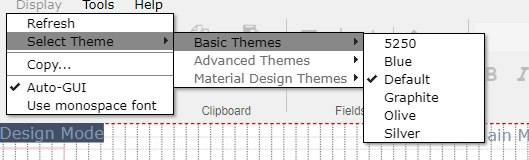
Once you start to customize an application you should stop using the basic 5250 themes and develop your own customized role-based styles and themes. Tutorial 6 introduced this concept. The following tutorial covers it in much more depth.
Initially, some of this material may seem complex to you. However, the time you invest in understanding it will greatly improve the final appearance of your application.
Using Themes
A further refinement of the style approach is to define overarching themes for your whole application.
Themes are just names, and typically they reflect an overall theme or style of appearance across a whole application.
You might dream up exotic theme names like Midnight, Sunset and Moonlight, but commonly designers use themes that are influenced by Microsoft - like their Blue, Silver and Olive themes. First introduced with Windows XP these themes are known to millions of people throughout the world.
In this example we are going to use 4 themes:
|
Blue |
|
Silver |
|
Olive |
|
Graphite |
Usually the first thing you want to associate with a theme is a primary background color - so here is what we are going to use in this example:
|
Blue |
#A9CAF7 |
|
|
Silver |
#E7E8EB |
|
|
Olive |
#CDDCC5 |
|
|
Graphite |
#B8BABE |
|




In the application properties you would then define 4 basic styles like this (In ts2, the name should be unique):
|
Name |
styleFor |
htmlTag |
Style |
Theme |
|
BasicWindowBackgroundBlue |
Application Window |
Background-color: #A9CAF7 |
Blue |
|
|
BasicWindowBackgroundSilver |
Application Window |
Background-color: #E7E8EB |
Silver |
|
|
BasicWindowBackgroundOlive |
Application Window |
Background-color: #CDDCC5 |
Olive |
|
|
BasicWindowBackgroundGraphite |
Application Window |
Background-color: #B8BABE |
Graphite |
Next the basic application property defaultTheme is set to indicate the default theme is blue:
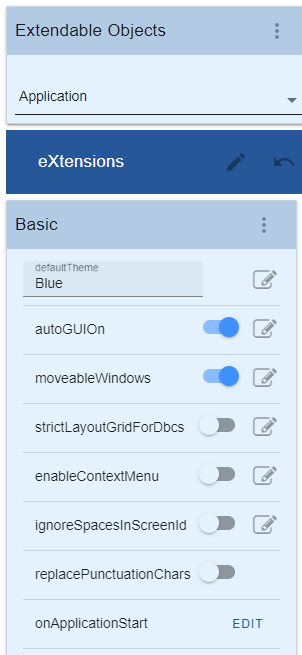
Note that the default theme is a property that can be derived from script - so you can change the defaultTheme at application start-up.
Note: If you are using aXes with RAMP-TS you would normally not bother to set up screen background colors. RAMP-TS will set the background color of its own current theme automatically.
Dynamically Changing Themes
You can also change the theme being used dynamically.
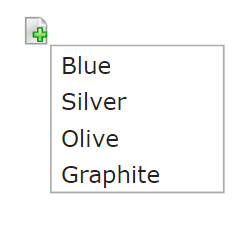
In this example a quick pick menu extension has been added to the IBM i Main Menu, add items list like this:
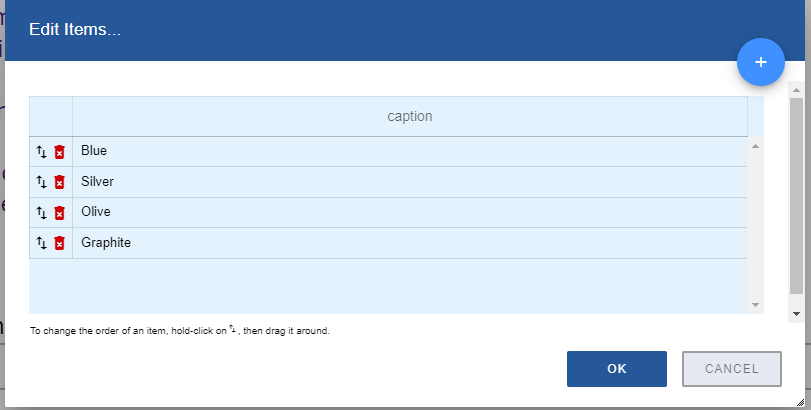
Save the changes and exit from edit mode. On hover will see a screen like:
The quick pick menu's onItemSelection property has this script:
var sTheme = "";
switch (ENV.itemNumber)
{
case 2: sTheme = "SILVER"; break;
case 3: sTheme = "OLIVE"; break;
case 4: sTheme = "GRAPHITE"; break;
default: sTheme = "BLUE"; break;
}
SETAXESTHEME(sTheme);
This script is using the function SETAXESTHEME() to alter the theme that is being used dynamically.
If you do this you will see the main system menu dynamically change color.
You can also use var sTheme = GETAXESTHEME() to find out what the current theme is in your scripts.
Note: If you are using aXes with RAMP-TS you should not dynamically change themes this way. Instead, you should follow the theme that RAMP-TS is using. It can be accessed in an eXtension script as RAMP.GLOBAL_VL_Theme. It will contain one of strings "BLUE", "OLIVE", "SILVER" or "GRAPHITE". Additionally, the background color that RAMP-TS is using can be accessed as RAMP.GLOBAL_HTML_BackColor which will contain a #RRGGBB style color value.
Applying Themes to Screen Elements
Next we are going to use the same approach to handle a role-based screen element.
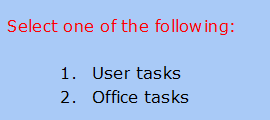
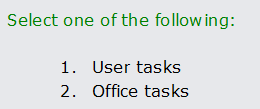
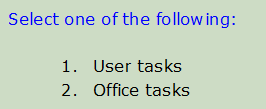
A new style named InstructionColor (in all 4 themes) is defined like this:
|
Name |
styleFor |
htmlTag |
Style |
Theme |
|
Instruction |
color: red |
Blue |
||
|
Instruction |
color: green |
Silver |
||
|
Instruction |
color: blue |
Olive |
||
|
Instruction |
color: white font-weight: bold |
Graphite |
Note: These color choices are to make this example clear. They are not good choices for a real application because they are not sympathetic to the overall theme, with the possible exception of the Graphite one.
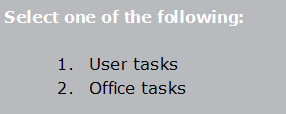
Next, the instruction line on the IBM i Main menu has the style Instruction associated with it, like this:
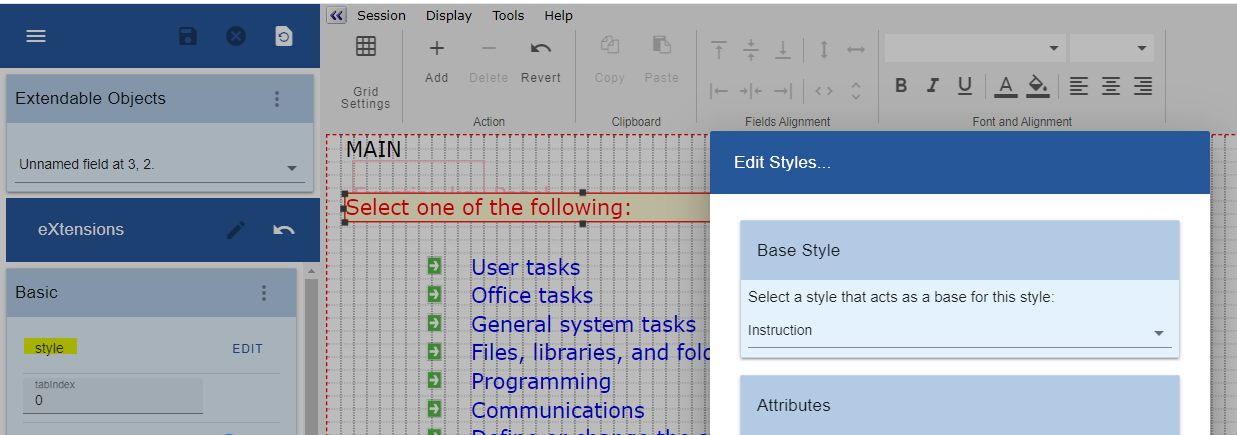
Now as the theme is changed by the quick pick menu, the style of the instruction line changes as well:
Blue Theme
Silver Theme
Olive Theme
Graphite Theme
Next, we are going to create a new style named Title.
This time we are going to just define these 2 entries:
|
Name |
styleFor |
htmlTag |
Style |
Theme |
|
Title |
color: blue; font-weight: bold; font-style: italic; |
|||
|
Title |
color: white; font-weight: bold; font-style: normal; |
Graphite |
Title is defined once with no theme - and again, but only for the theme Graphite.
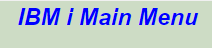
Next the style Title is associated with the title on the IBM i Main Menu.
As the 4 themes are cycled it appears as:
Blue Theme

Silver Theme

Olive Theme
Graphite Theme
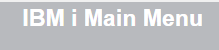
Where most of the themes use the same style elements - you only need to define the styles that are different. Here blue, silver, and olive all use the Title style that has no associated theme.