axSubfileScroller
Description
axSubfileScroller allows a subfile scrolling control to be inserted into the 5250 screen.
Usability
|
Context |
Supported |
|---|---|
| Input screen fields | No |
| Output screen fields | No |
| Input subfile fields | No |
| Output subfile fields | No |
| New screen elements | Yes |
Properties
|
Name |
Description and Comments |
JavaScript |
Shipped default |
|---|---|---|---|
| enabled | Indicates whether this element is enabled. TS2 only. | Yes. Must return a Boolean. | True |
| markerFieldName | The name of the field that contains the string that indicates the subfile extends to another page | No | Blank |
| pgDnImagePath | Path to locate the page down image file | No | /ts/skins/images |
| pgDnImageName | Name of the page down image file | No | pagedown.gif |
| pgUpImageName | Name of the page up image file | No | pageup.gif |
| pgUpImagePath | Path to locate the page up image file | No | /ts/skins/images |
| pgUpOnClick | Event that fires when clicking on page up. | Yes | SENDKEY("PageUp"); |
| pgDnOnClick | Event that fires when clicking on page down. | Yes | SENDKEY("PageDown"); |
| scrollMarkers | List of strings that indicates that the subfile extends to another page | No | "+", "More..." |
| style | CSS to apply to the subfile scrolling buttons. | No | Height = 17px Width = 17px |
Examples
Insert subfile scroll buttons into the Maintain Employee Information screen of the aXes Demo HR system.
Step 1: Open the Projects Home Page. Select your project and then use the Work as Developer option and sign on to a 5250 session.
Step 2: Start the shipped aXes demo system by entering the commands:
ADDLIBLE AXESDEMO
CALL XHRRPGTRN
The resulting 5250 screen should look like this:
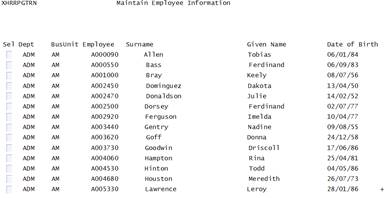
Step 3: Start editing the screen and click on the "+" sign and name that field PageMarker.
Step 4: Add an axSubfileScroller eXtension.
This is done by adding a new element to the screen.
Make it into a Subfile Scroller by checking that option.
Change the scroller's markerFieldName property to "PageMarker".
Then move and position the scroller as required.
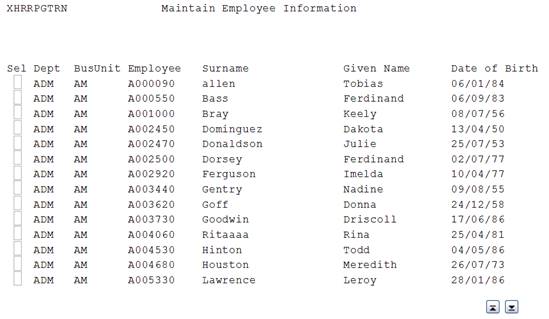
Step 5: Select the PageMarker field and uncheck its Default Visualization option so that its contents no longer appear.
Save your changes.
The modified screen should look like this:
Change Scroller Button Images
This example assumes that anaxSubfileScroller eXtension has been added to an aXes screen as in the previous example.
Step 1: Open the Projects Home Page. Selectyour project and then use the Work as Developer option and sign on to a 5250 session.
Step 2: Start the shipped aXes demo systemby entering the commands:
ADDLIBLE AXESDEMO
CALL XHRRPGTRN
Step 3: Start editing the screen and click on the Subfile Scroller eXtension to highlight it and bring up its properties into the aXes Designer window.
Step 4: Click on and change the pgUpImageName property to movepageup.jpg. Then click on and change the pgDnImageName property to movepagedown.jpg.
Step 5: Click on the style property and change the height and width style attributes so that the scroller buttons will be large enough to display the new images. Use 22px for each attribute.
Save your changes.
The modified screen should look like this:
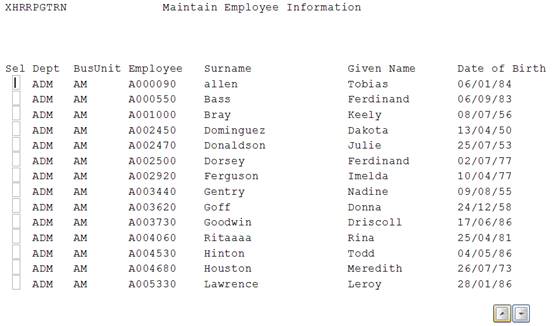
The display of the Up and Down button will change based on the theme set in Application->Styling->appStylesTheme property. When JQueryUI is selected, the Up and Down button will be displayed as a JQuery themeable button and the style will depend on the JQuery theme that is set inthe Application->Styling->jqueryTheme property. It is the same as when Material Design is selected, the buttons will be displayed as Material Design theme set in mdTheme property.
See Also
Application Style Collection for Application themes