axFKeyPanel
Description
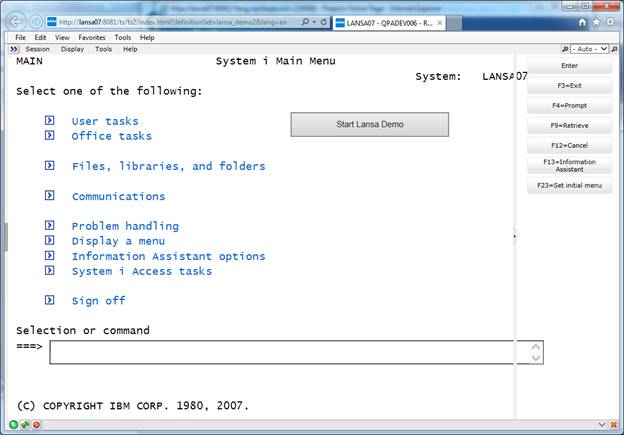
A typical 5250 screen shows function keys in two rows at the bottom of the screen. aXes emulates the screen by displaying function keys as buttons in the same place. The aXes Function Keys Panel is a separate HTML panel that sits adjacent to a terminal server panel and contains the function keys displayed as buttons. The Enter key button is always available and the screen in the terminal server panel determines the other function keys available in the function keys panel. The terminal server panel includes no function keys when the function keys panel is active
Usability
|
Context |
Supported |
|---|---|
|
Input screen fields |
No |
|
Output screen fields |
Yes |
|
Input subfile fields |
No |
|
Output subfile fields |
No |
|
New screen elements |
Yes |
Properties
|
Name |
Description and Comments |
JavaScript |
Shipped default |
|---|---|---|---|
|
autoGenerateFunctionKeyScript |
When this option is set to true the Extension will generate automatically the function key script. |
Yes. Must return a Boolean. |
True |
|
alwaysDisplay |
When this option is set to true, the panel will still be displayed with Enter button even there is no function keys on the screen. |
Yes. Must return a Boolean. |
False |
|
horizontalWidth |
The width of a horizontal function keys panel is fixed at the same width of the terminal server panel. |
No |
180 |
|
resizePane |
When set to true the panel can be resized. |
Yes. Must return a Boolean. |
False |
|
buttonHeight |
The button height applies to all buttons |
No |
30 |
|
buttonPadding |
The button padding applies to all buttons |
No |
5 |
|
buttonStyle |
The style to be applied to the buttons |
Yes. Must return a valid style object. |
Flat |
|
buttonWidth |
The button width applies to all buttons |
No |
150 |
|
enabled |
Indicates whether this element is enabled. TS2 only. |
Yes. Must return a Boolean. |
True. |
|
label |
Text only Text only shows the button label extracted from the terminal server screen without the function key identification (i.e. Exit without the F3). Function key only Function key shows only the function key identification (i.e. F3 without the Exit). Both The both value shows the button label from the terminal server screen and the function key. |
No |
Text Only |
|
onItemSelection |
|
Yes |
|
|
position |
Right A vertical function keys panel will appear at the right of the terminal server panel Left A vertical function keys panel will appear at the left of the terminal server panel Top A horizontal function keys panel will appear above the terminal server panel. Bottom A horizontal function keys panel will appear below the terminal server panel. |
No |
right |
|
verticalHeight |
The height of a vertical function keys panel is fixed at the same height of the terminal server panel. |
No |
40 |
Notes, Comments and Warnings
The function key panel extension works on TS2.
AutoGUI options for TS1 developer are not available, as the function key panel extension does not work on TS1.
Function key panel if configured as autoGUI options, dynamically inserts this extension into every available screen. Same properties appear on autoGUI options.
When using the function keys panel extension and autoGUI on customized screens, the function key panel extension takes priority and overrides autoGUI settings.
Button Label options to select text only, function key only and both text and function key overrides the “Show function key number on button” options.
Screens containing selectable items, with select type “button”, will have the buttons positioned in the function keys panel. Screens with pop up windows that contain function keys retain the function key buttons and the buttons do not appear in the function keys panel.
AutoGUI Options
AutoGui options is accessible only on TS2 developer tools. Start TS2 developer tools within the development session or add “&dev” to URL of TS2 this will enable developer mode and AutoGui tab will be accessible within the developer tab panel. Check Show function keys on Panel to enable the options.
See screenshot below.
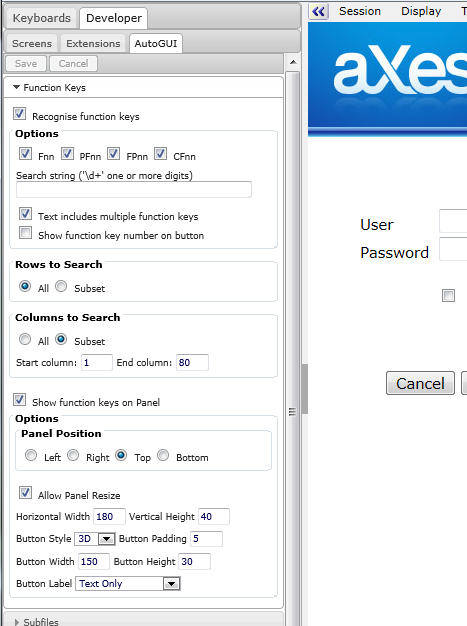
Function key panel
TS2 user mode
See Also
Application Style Collection for Application themes