axDropDown
Description
axDropDown allows a drop down to be inserted into the 5250 screen.
Usability
|
Context |
Supported |
|---|---|
|
Input screen fields |
Yes |
|
Output screen fields |
Yes |
|
Input subfile fields |
Yes |
|
Output subfile fields |
Yes |
|
New screen elements |
Yes |
Properties
|
Name |
Description and Comments |
JavaScript |
Shipped default |
|---|---|---|---|
|
dropDownStyle |
CSS to apply to the drop down |
No |
None |
|
dataSourceType |
Indicate where the source data is obtained from. |
No |
fixedValues |
|
tableName |
For Static Table data source type, this must be the value set for the name = property. |
No |
None |
|
onFillDropDown |
JavaScript code to execute to fill the drop down. |
Yes |
Blank (i.e. no script to execute – interpreted as ROW.text) |
|
xmlFileName |
Name of XML file when the source type is XML. |
No |
None |
|
xmlFileLocation |
Path to locate the xmlFileName when the source type is XML. |
No |
*DEFAULT which is equal to
/ts/screens/<private folder> |
|
fixedValues |
For Fixed values data source type you must enter the value pairs used to fill the drop down |
Yes. Must return an array of value pair object. |
None |
|
additionalEntries |
Use this property to add one or more entries to the drop down. Note that if you use this option with static tables, dynamic tables or XML documents, the values you are adding are inserted into the underpinning table – which subsequently causes them to appear in the drop down. This may impact other eXtensions or scripting that also use the same underpinning table.
|
Yes |
None |
|
onSelectValue |
Determines the drop down entry to select. |
Yes |
None (i.e. no script to execute – interpreted as ROW.value) |
|
onSelectedValueChanged |
Event raised when the selected drop down entry changes |
Yes |
FIELD.setValue(ROW.value) |
|
sqlQueryName |
For Dynamic Table data source type the value set for the name = property |
No |
None |
|
sqlVariables |
For Dynamic Table data source the variables used in your query. |
|
ENV.SQL.SQLVariableLibrary = USERENV.dftSQLDataLibrary |
|
keepLastKey |
For Dynamic Table data source. If this option is true, a dynamic table will only be reloaded if the key changes. |
No |
False |
|
onFocus |
Optional. JavaScript code to be executed when the element receives the focus. |
Yes |
None |
|
onBlur |
Optional. JavaScript code to be executed when the element lost the focus. |
Yes |
None |
|
label |
The text that will be displayed on top of the dropdown. For JQUeryUI and Material Design theme only. |
Yes |
None |
|
fitText |
Indicates whether to automatically resize the text to fit inside the extension. For JQuerUI theme only. |
Yes |
True |
|
enabled |
Indicates whether this element is enabled. TS2 only. |
Yes. Must return a Boolean. |
True |
|
trimValue |
Indicate whether to enable or disable the trimming of value. |
Yes. Must return a Boolean. |
True |
Notes, Comments and Warnings
dataSourceType:
Determines the method used to populate the drop down. The options are:
Fixed Values: use this setting for drop downs with a small number of values when the values don't change.
Static Table: static tables are loaded once from the server at start up. The name of the static table must be the name specified in tableName.
Static tables are very efficient and they can contain hard coded values or can be loaded by executing SQL commands.
XML File: the data to fill the table is obtained from an XML file located by default in /ts/screens/<private folder>. To specify another location, change the xmlFileLocation property.
Dynamic Table: use this option carefully as it is the only one where the data is loaded at every screen arrival with an expected performance impact in the rendering of the screen. When you use this option you must specify the name of the query in sqlQueryName as defined in your dynamic tables file.
This value indicates that the data should come from a dynamically created table.
· A dynamic table is (re)loaded every time a screen is displayed.
· Dynamic tables are expensive to use compared to static tables.
· Only use them when the table content needs to vary according to some dynamic criteria (eg: current company, current product, etc).
· Dynamic tables can only be loaded by SQL commands.
You can use the keepLastKey option to improve performance, if multiple requests using the same query key are commonly made.
Should I use a Static or a Dynamic Table?
You do not have to use a dynamic table just because you want to execute an SQL command to load the table. You can load static tables from SQL commands as well.
You can use the highly efficient static tables in ways you may not know about.
Imagine a scenario where a currency table’s content needs to change according to a company number (ie: You can only use certain currencies for certain companies).
Your immediate reaction may be to just use a dynamic table - passing the company number as an SQL variable to control which currencies are selected by the SQL command that is executed to fill the dynamic table.
This will work, but compared to using a static table this approach is expensive to execute.
You can improve this approach in several ways by using static tables instead:
Option 1: Create a single Static Table named Currency:
It would contain all the currency details for all the companies - and the associated company number as an extra column. When filling a drop down you can use scripting in the onFillDropDown property to omit table entries that are not valid for the current company by returning ENV.returnValue as null (meaning no visible entry is to be added to the drop down).
Option 2: Create multiple Static Tables named Currency_CC:
Where _CC is the company number (say).
Script the drop down’s tableName property to dynamically change.
You are using static tables - but now you are dynamically changing the table name - instead of the table content.
Note: This approach also works well with XML sourced tables. For example, you could also create an RPG program that runs every night (say).
It would read corporate "static" data files and flatten them out into a highly structured series of XML documents - where the name of the document (ie: table) is meaningful.
Option 3: Use start up or log on logic to load the "correct" set of static table data
When there is a clear point in the application where the user logs on and selects a company to work with - you can script an onArrive or onLeave events to force all static tables to load or reload.
Where they are loaded from SQL you can pass variables to the SQL executed to load them (eg: the selected company number).
Now the static table Currency would only ever contain the currencies for the currently selected company.
All the "users" of the Currency static table - like drop downs - no longer have to worry about the content - it will always be correct for the currently selected company.
What is a ROW?
The drop down makes use of the aXes table structures. It means that the data to populate the drop down is stored in memory in a table-like structure consisting of rows and columns. For example, consider a table defined like this:
DefineObjectInstance { className = "StaticTable",
name = "Gender",
source = "inline",
rows = {
{value="M",text="Male"},
{value="F",text="Female"},
},
};
(Note that for such a table you would most likely set the dataSourceType to Fixed Values and type in the values manually).
At start up aXes populates the tables with one called Gender. It will have 2 rows, each ROW consisting of columns value and text. Using the Gender table, ROW.value would yield the current row's value= value and ROW.text the current row's text= value.
There is no constraint on how you name the row columns. If you use other names you must remember to change the default values to reflect the column names.
For example, if your file or fixed values define your columns like this:
rows = {
{codigo="M",descripcion="Masculino"},
{codigo="F",descripcion="Femenino"},
},
};
The default values or script code should refer to ROW.codigo and ROW.descripcion.
onFillDropDown event
This event populates the drop down. It will fire (following our table example) whenever a screen (any screen) that has a drop down whose tableName was set to Gender arrives.
It will locate the Gender table and iterate through all its entries.
For each entry it will add an entry where the visible text in the drop down is equal to the value in text column of the Gender table. The result in our example will be a drop down with 2 entries: Male and Female.
This is the simplest way to use onFillDropDown.
A more powerful way would be to fill the drop down with a value resulting from the evaluation of a more complex expression.
If we extended the Gender table like this:
DefineObjectInstance { className = "StaticTable",
name = "Gender",
source = "inline",
rows = {
{value="M1",text="Male", agerange="16-25"},
{value="M2",text="Male", agerange="26-35"},
{value="M3",text="Male", agerange="36-45"},
{value="F1",text="Female", agerange="16-25"},
{value="F2",text="Female", agerange="26-35"},
{value="F3",text="Female", agerange="36-45"},
},
};
We could change onFillDropDown to say:
ROW.text + "s aged " + ROW.agerange
The drop down would end up with entries that look like this:
Males aged 16-25
Males aged 26-35
Males aged 36-45
Females aged 16-25
Females aged 26-35
Females aged 36-45
Note that executing custom code is a relatively expensive process. This event is fired once for each entry in the dropdown. If you have a lot dropdowns and/or large dropdowns this can have an impact on screen rendering time. The eXtension recognises the special case of an empty script (the default) and returns the value of ROW.text without having to execute any custom code. Consider carefully if you need to use this event, or if you can change the structure of your table so that ROW.text already contains the correct data.
onSelectValue event:
The code in this event determines what drop down entry to set as the selected. It can be something simple like:
ROW.value
If the expression does not return a value of type Boolean, the default logic of comparing the value is returned with the associated field's value.
An example of an expression returning a value of type Boolean would be:
(ROW.value == "Hello")
Note that executing custom code is a relatively expensive process. This event is fired once for each entry in the dropdown. If you have a lot dropdowns and/or large dropdowns this can have an impact on screen rendering time. The eXtension recognises the special case of an empty script (the default) and returns the value of ROW.value without having to execute any custom code. Consider carefully if you need to use this, or if you can change the structure of your table to avoid it.
onSelectValueChanged event:
This event fires when an entry in the drop down changes. The default behaviour here is
FIELD.setValue(ROW.value)
In other words, set the value of the field (which is referred to as FIELD) associated with the drop down to the value of the selected ROW.
additionalEntries:
Lets you add entries in addition to those added by the specified method in dataSourceType.
The easiest and preferred way of adding a blank entry at the top of the drop down would be to add it to your static table or fixed values with blank values.
Another way would be to use additionalEntries.
This property works by calling an internal method named addTableROW. It receives 2 parameters:
|
oRow |
Object - represents the ROW. It must be structurally the same as any of your other ROWs. In other words it must have the same properties. |
|
bAtBegin |
Boolean - Indicates whether to add the entry at the beginning or at the end of the drop down. Defaults to false |
For example, to add an entry at the top of the drop down source by the Gender table you would this in your additionalEntries property:
var oGenderROW = {value: "", text: "Select an entry from this list", agerange:"" }
this.addTableROW(oGenderROW, true); /* Note the this qualifier */
Note that when the drop down is associated to a field, the field will be set to the
"" when this entry is selected unless you add logic to the onSelectValue and onSelectValueChanged.
fixedValues:
Sets the data of Dropdown when Fixed Values is selected as the dataSourceType. If using script, the ENV.returnValue must contain an array of value pair object as follows:
ENV.returnValue = [ { value: "GA", text: "Georgia" },
{ value: "HI", text: "Hawaii" },
{ value: "UT", text: "Utah" }
];
In Application, appStylesTheme property = JQueryUI
When JQueryUI is selected in the Application->Styling->appStylesTheme, the display of this extension will change according to the theme that was set in the Application’s jqueryTheme property.
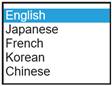
Basic theme display:
JQueryUI theme display:
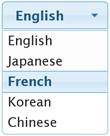
The size of the dropdown will depend on the size of the field. Resizing the field will also resize the dropdown.
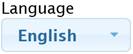
When JQueryUI theme is used, the label property can also be set. Any string set in this property will be displayed on top of the dropdown.
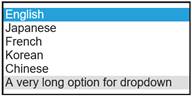
Unlike the basic extension, the JQuery dropdown extension’s menu will always have the same width as the dropdown itself. When the option text does not fit the width of the dropdown, the text will be displayed in multiple lines.
Basic with long text:
JQuery extension with long text:
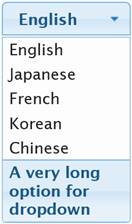
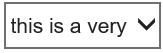
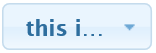
When a text does not fit the dropdown, the JQuery extension will display the “…” characters indicating that the full text cannot be displayed.
Basic extension with a long text option selected:
JQuery extension with a long text option selected:
In Application, appStylesTheme property = Material Design
When Material Design is selected in the Application->Styling->appStylesTheme, the display of this extension will change according to the theme that was set in the Application’s mdTheme property.
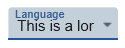
When Material Design theme is used, the label property can be set and displayed as follows:
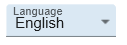
Material Design extension with a long text option selected:
See Also
Dropdowns in Tutorial 6 - Advanced Screen Enhancement
Static Tables that load from static data in Tutorial 11 - Tables and XML Documents
Static Tables that load from a database file in Tutorial 11 - Tables and XML Documents
XML Documents in Tutorial 11 - Tables and XML Documents
Example – Dynamically refreshing a drop down without server interaction in Tutorial 13 - FAQ and Examples
Example – Two level drop down in Tutorial 13 - FAQ and Examples
Example – Using a drop down as subfile option field in Tutorial 13 - FAQ and Examples
Application Style Collection for Application themes